¶ Logging in to pulse
Follow the steps below to log in to the Pulse application:
- Open Web Browser: On a supported web browser such as Google Chrome or Microsoft Edge, enter the login URL in the address bar. Log in to Pulse using the url: https://data.exactspace.co/pulse-login/
- Enter Credentials : On the login page, enter the user-assigned username and password in the respective fields.
- Click Login : After entering the credentials, click on the Login button.
The page that appears depends on the configuration for the user. The menu shown here appears.
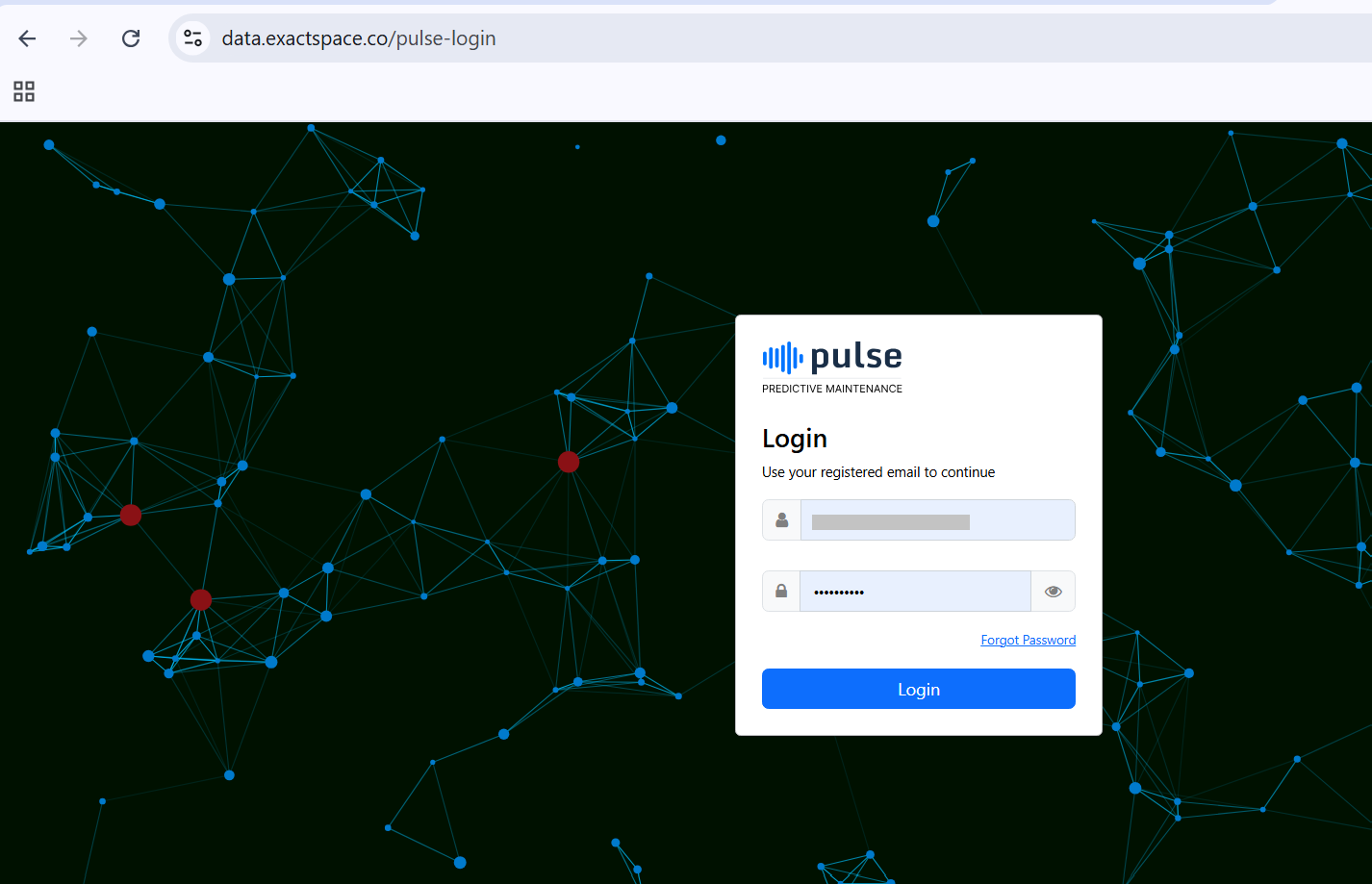
Figure 3. Pulse login page
- Enter OTP from Authenticator App: User will receive a One-Time Password (OTP) in user registered authenticator app (e.g., Google Authenticator, Microsoft Authenticator). Enter the OTP into the designated field in the login screen.This is a multi-factor authentication (MFA) feature provided by Pulse for security purposes

Figure 1. Login Page
Successful Login and Redirection
Upon successful authentication, users will be redirected to the Dashboard (Ops Centre), which serves as the main landing page of the application. Ensure that the page loads completely without any errors.
Note
- Access to the application is restricted to authorized client specific users only.
- In case the user forgets their password, it can be reset using the “Forgot Password” option available on the login page.
- For login-related issues, users should contact the designated administrator.
- Ensure that the system time on the user’s device is correctly synchronized, as it may impact OTP-based authentication.